
This evening I have started some training on LinkedIn Learning about Docker. Docker is software that allows for software to be placed in virtual containers containing the software and all its dependencies. Unlike virtual machines which virtualise the hardware and contain an operating system, a container runs just above the host operating system. Docker containers are generally much smaller than virtual machines.
The Docker Desktop installation dmg for MacOS X can be found at:
https://store.docker.com/editions/community/docker-ce-desktop-mac
A Docker account is needed to access the download file, at time of writing (November 2018) this account is free. With the dmg downloaded and opened we need to drag and drop Docker.app onto the Applications folder.
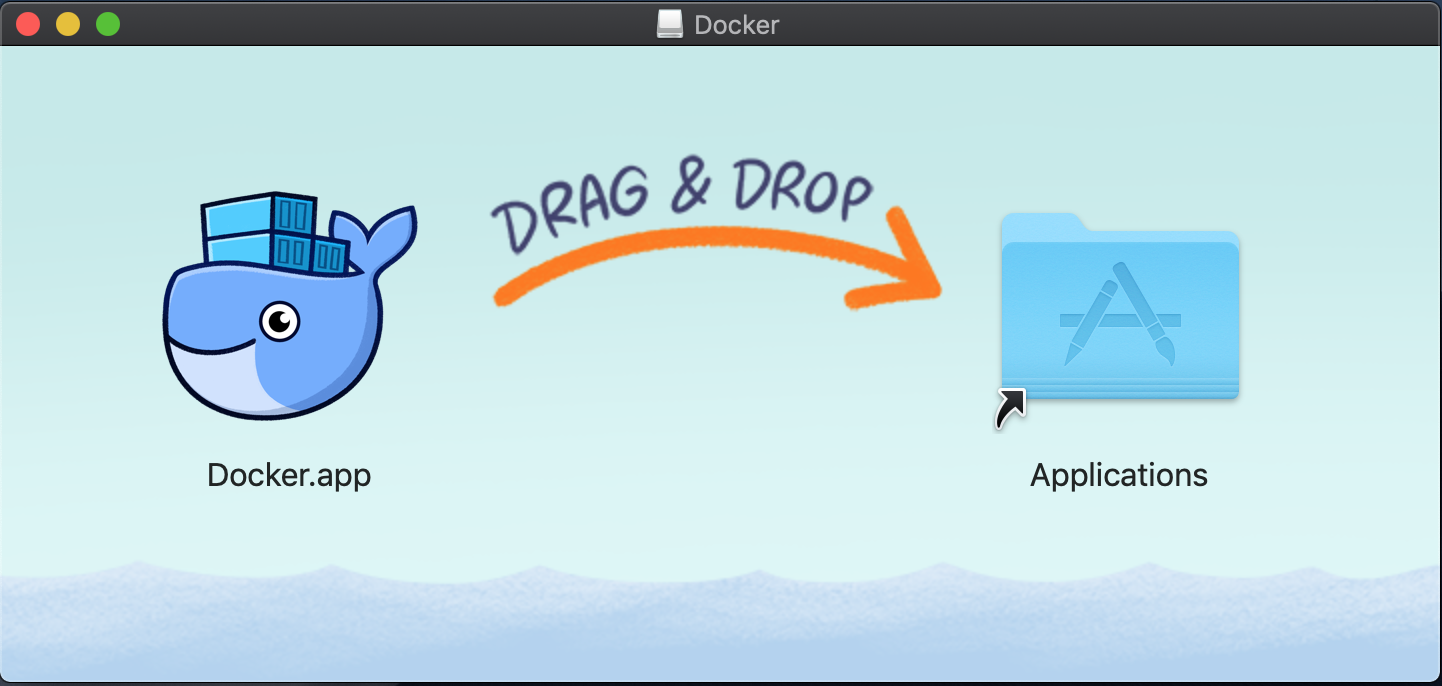

The copying takes a few moments, and as the application has been downloaded from a 3rd party (i.e. not Apple Store) website it gives a warning on first launch.

After choosing “open” Docker greets us with a welcome whale and then asks for elevation (it needs the MacOS account password).


With all that out of the way, Docker is installed and ready to run. Docker places a docker whale icon onto the Mac OS task bar and asks for the Docker account information, this is the same Docker account created to download Docker.


Docker provides an install guide for Docker on MacOS at:
https://docs.docker.com/docker-for-mac/install/
What Next?
With Docker installed and logged into your Docker account, we can open up Terminal and check that everything is working. At the terminal prompt type:
docker –version
And this should return the Docker version/build that is currently installed, in my case this is version 18.09.0 build 4d60b4.

As Docker is new to me, it is time for the standard “Hello World!” to see how it works.
At the terminal prompt type:
docker run hello-world

As Docker could not find the “hello-world” image locally (i.e. on my Mac) it contacts the Docker daemon which then searches the Docker Hub, finds the latest “hello-world” image, downloads it, then creates a container to run it in and outputs the “Hello from Docker!” message via the Docker client into the terminal session.
As the above screen shot indicates, Docker can be used to run an Ubuntu (Linux) BASH session via Mac OS Terminal, via the following command:
docker run -it ubuntu bash

The uname -a is a BASH command that outputs information about the machine, operating system and kernel.
Docker provides a “Getting Started” guide at:
https://docs.docker.com/docker-for-mac/
Docker containers use commands in the following format:
docker container COMMAND

To see what can be run in a container visit https://hub.docker.com/explore/
I’m going to give Docker a whirl and see what I can do, hopefully I will follow up with a new blog post soon.

 GeekTechStuff
2 responses to “Installing Docker (Mac)”
[…] Python install. Using Docker can resolve this issue but for those that don’t want to use Docker there is also the option of using a Python Virtual […]
LikeLike
[…] and Docker go hand in hand, and today I am going to follow up on my “How to install Docker” blog post from a while ago. In this blog post I am going to demonstrate how to create a […]
LikeLike