There were often times when I found myself typing the same commands into the terminal on my Raspberry Pi and I with my knowledge of scheduling Python (.py) files to run via CRON I decided to start running my regular terminal commands as scripts.
A BASH executable script is basically a text file saved with the file extension .sh and with a sha-bang line at the very top that reads:
#!/bin/bash
With the file saved close the text editor and open a terminal window. Navigate to the folder containing the file and then type:
chmod +x bash_file_name.sh
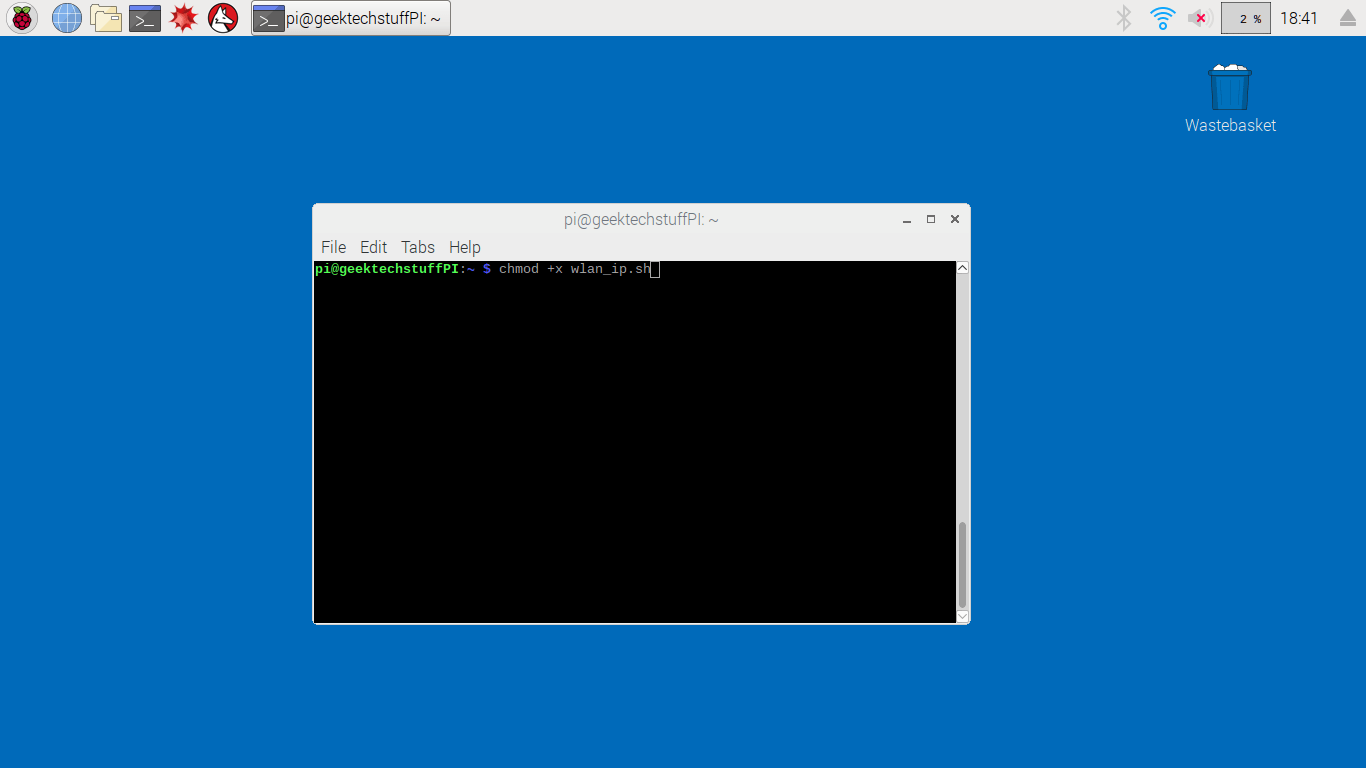
Replacing “bash_file_name.sh” with the name of your BASH file’s name.
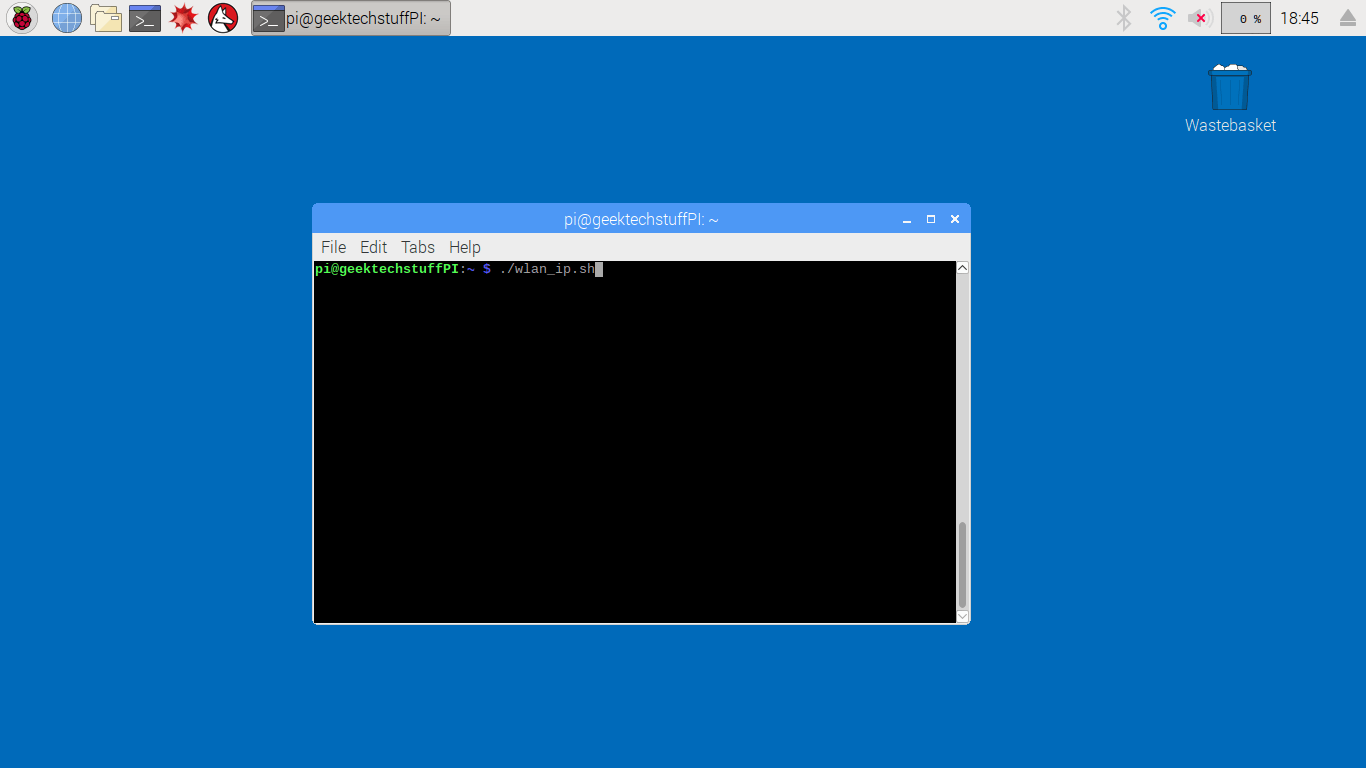
This command changes the file attributes so that it can be run as an executable. Once executable it can be run via the Terminal by typing:
./bash_file_name.sh

 GeekTechStuff
3 responses to “Making a BASH script executable (Raspberry Pi)”
[…] could follow instructions on building a LAMP Web Server manually OR you could use a BASH script and let the various installs happen without any interaction, which could be set to run via a […]
LikeLike
[…] my current Raspberry Pi themed posts (making a BASH script executable, installing web server in a BASH script) today I will be looking at network booting a Raspberry […]
LikeLike
[…] Making it executable Scheduling Tasks With Cron […]
LikeLike