For this part of the Raspberry Pi IoT project I am going to be using Microsoft Azure, if you want to follow along please sign up for a Microsoft Azure account.
Log in to https://portal.azure.com/ with your Microsoft Azure account. For me it took a few minutes and a few log offs/ons for my free Azure trial to kick in.

In the top left corner click “Create a resource” and choose “Internet of Things” from the menu.

From the “Internet of Things” menu choose “IoT Hub”.

The IoT screen may look a little daunting but don’t worry it just needs a few settings.
- Subscription: For the free trial select “Free Trial”, if you have a paid for subscription choose it.
- Resource Group: Choose an existing resource group, or if like me this is your first Azure interaction you will need to create one (with a meaningful name).
- Region: Choose the region closest to where you are, i.e. I’m in the west of the UK so chose UK West.
- IoT Hub Name: Name your IoT hub something meaningful. This name is discoverable as a DNS endpoint so avoid personal / private details or anything you wouldn’t want make public.

Next click “Next” Size and scale” to bring up the size and scale menu. At this point there are several subscription (pricing tiers) available. I’m going for the free tier as an Azure subscription can have 1 free IoT hub.
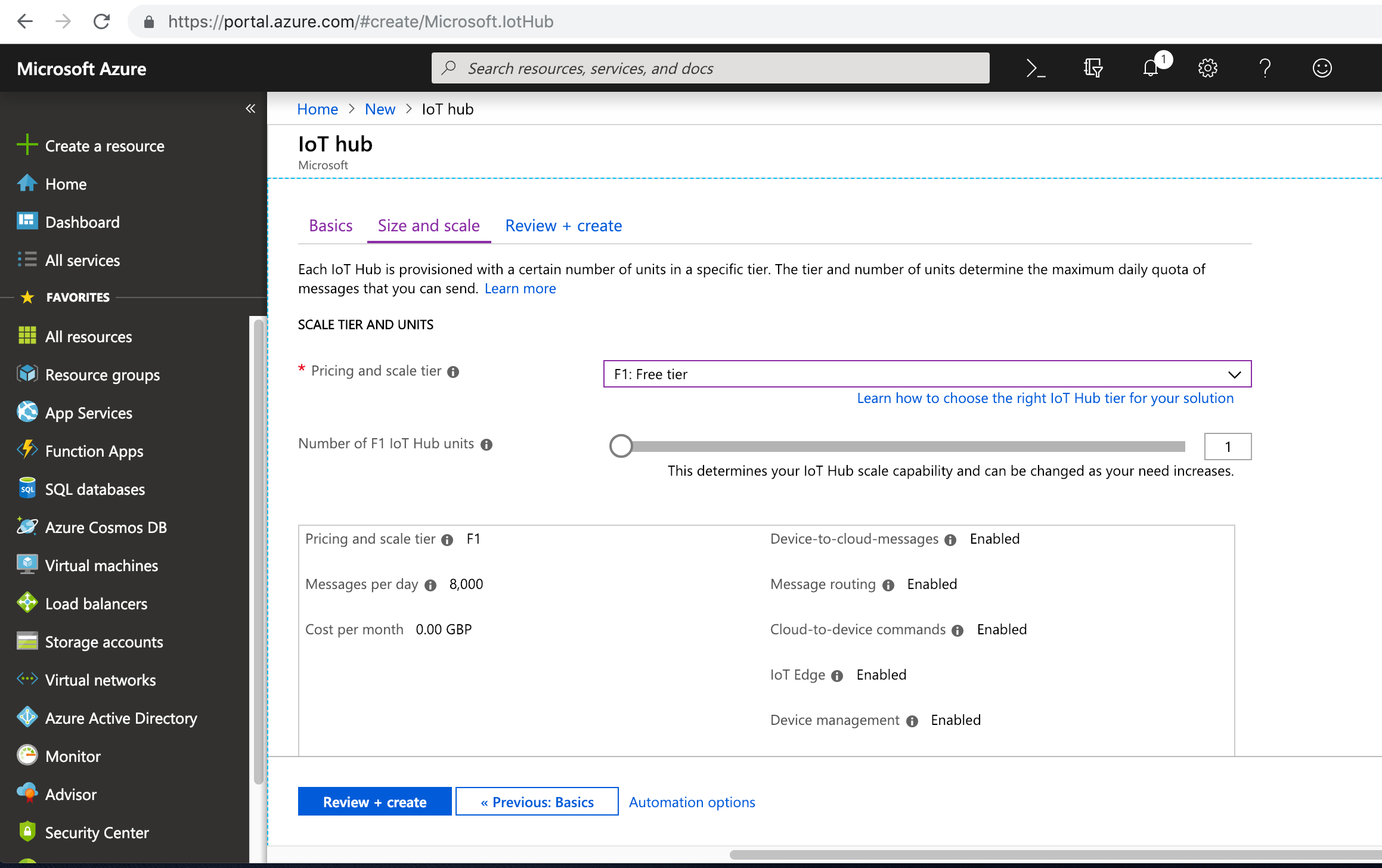
The free tier is intended for testing and evaluation, and allows for up to 8000 messages per day so should meet the needs of my project. If you do not use the free tier please make sure to check the cost per month before proceeding. The next page then confirms what is being created. Again, check the price meets what you are ok paying.

If pricing and settings are correct, press “Create” and Azure will start to do its magic. The deployment can take a little bit of time and needs to complete / finish before a device can be registered.


 GeekTechStuff
2 responses to “Azure IoT Hub – Raspberry Pi IoT Project”
[…] the hardware, took measurements and outputted them to a Twitter bot. Then yesterday I created an Azure IoT Hub, which means I now need to connect the Raspberry Pi to the Azure IoT […]
LikeLike
[…] you want to follow my full thinking you may want to check out: My Twitter Bot and my first use of Azure. If you are skipping that reading then you will need the following to run this […]
LikeLike