
So far I have used Python with the requests library and beautifulsoup library. This had allowed me to GET and POST requests to web servers, and to parse results back in a more friendly way.
Now I’m going to introduce Selenium. Selenium allows Python to interact with webpages by opening a web browser (e.g. FireFox, Google Chrome, Safari) with either the browser window opening on screen or without the browser window (in a mode called headless).
The GitHub for Selenium Python can be found at: https://github.com/baijum/selenium-python
I am using Selenium on my Apple MacBook, and I’m going to use it with the Safari browser. For this to work I have enabled the remote automation options within Safari.
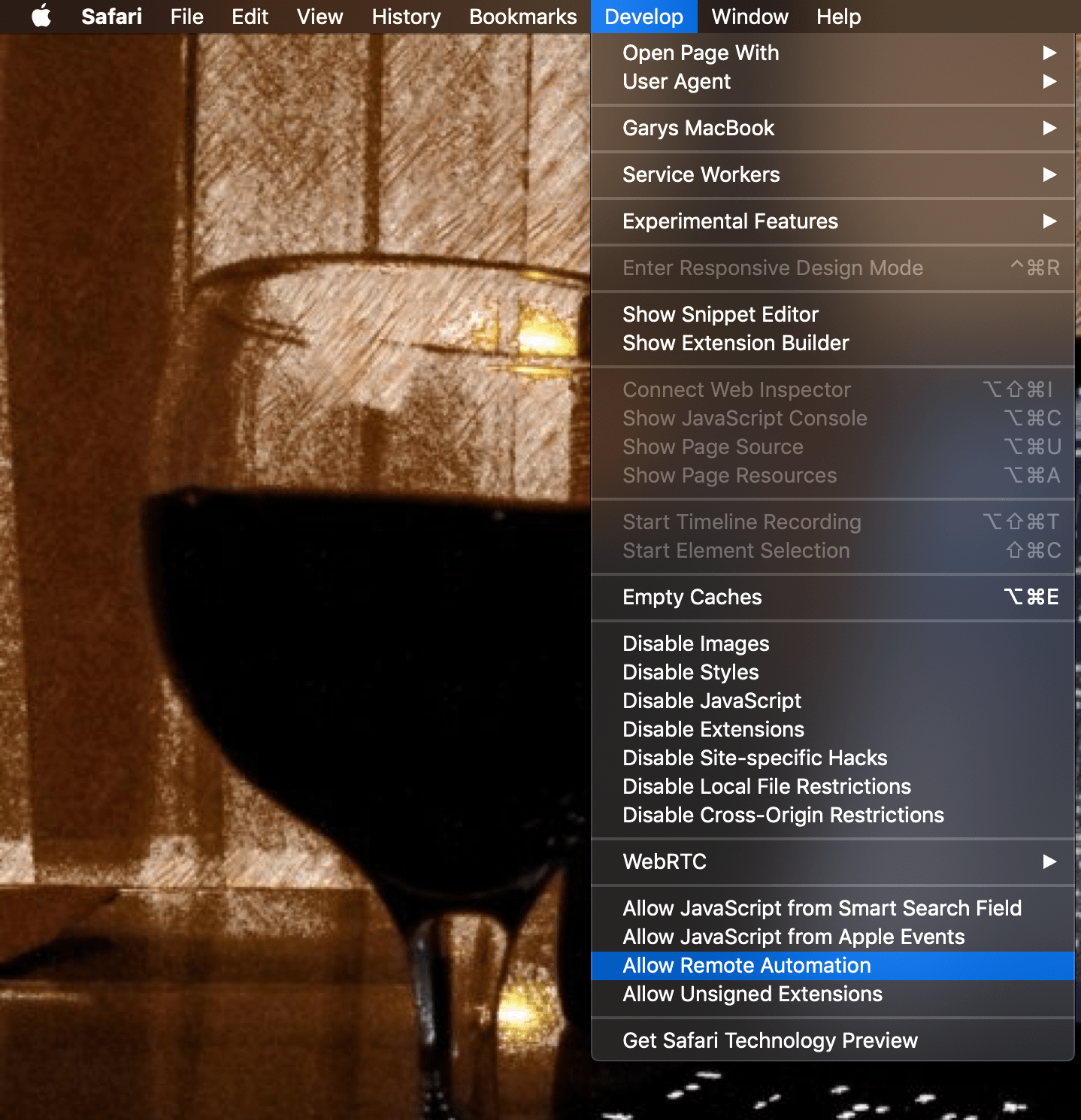
To enable remote automation, first enable Safari’s Develop menu (Preferences>Advanced>Show Develop menu in menu bar) and then choose “Allow Remote Automation” on the Develop menu.
With remote automation on, Python (or other programs) can call on Safari.


I also imported the time library and got the program to wait 5 seconds at the end to make sure that it logs in.

This post forms part of my learning around web scraping using Python. The previous posts are available at:
Part 1 – https://geektechstuff.com/2019/04/30/web-scraping-interacting-with-web-pages-python/
Part 2 – https://geektechstuff.com/2019/04/16/web-scrapping-part-2-python/
Part 3 – https://geektechstuff.com/2019/04/30/web-scraping-interacting-with-web-pages-python/


 GeekTechStuff
You must be logged in to post a comment.